Bill of Quantities
Generate, price, and link to Schedule of Rates
What is the BQ?
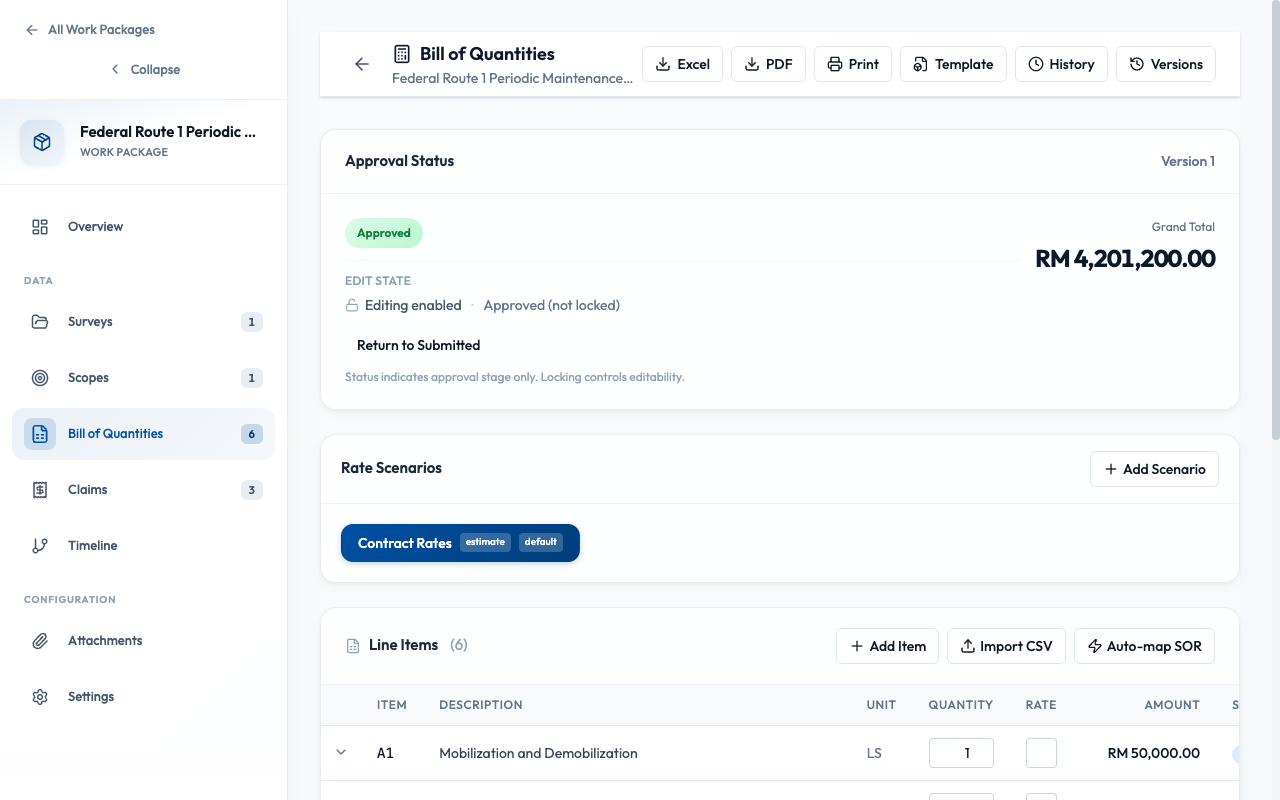
The Bill of Quantities (BQ) is generated from road segments marked during survey runs. Each segment's measurements and classifications are converted into priced line items. Link these to your Schedule of Rates (SOR) for proper pricing and audit trail.
How does BQ generation work?
Road segments contain measurements (length, width, area) and classifications (defect type, severity). The BQ generator aggregates these into standard work items.
From Segments
- Length (GPS measurement)
- Width (road width)
- Area (calculated)
- Defect classification
- Recommended treatment
To BQ Lines
- Item code and description
- Unit of measurement
- Quantity (aggregated)
- Unit rate (from SOR)
- Amount (qty × rate)
How do I generate a BQ?
- Open your work package and go to the BQ tab
- If no BQ exists, click "Generate BQ"
- The system aggregates segments from all linked surveys
- Review the generated line items
How do I link BQ lines to Schedule of Rates?
Linking BQ lines to your organization's Schedule of Rates (SOR) establishes proper pricing and creates an audit trail. When rates are updated, you control whether to sync or keep snapshots.
When you link a BQ line to an SOR item, the system captures a rateRef snapshot: the rate book name, version number, item code, description, unit, and rate at the time of linking. This snapshot is your audit trail — even if the SOR changes, you have the original pricing.
Individual Linking
- Click on a BQ line to expand it
- Click "Link to SOR"
- Search or browse the rate book
- Select the matching item
- Rate is applied automatically
Bulk Mapping (Recommended)
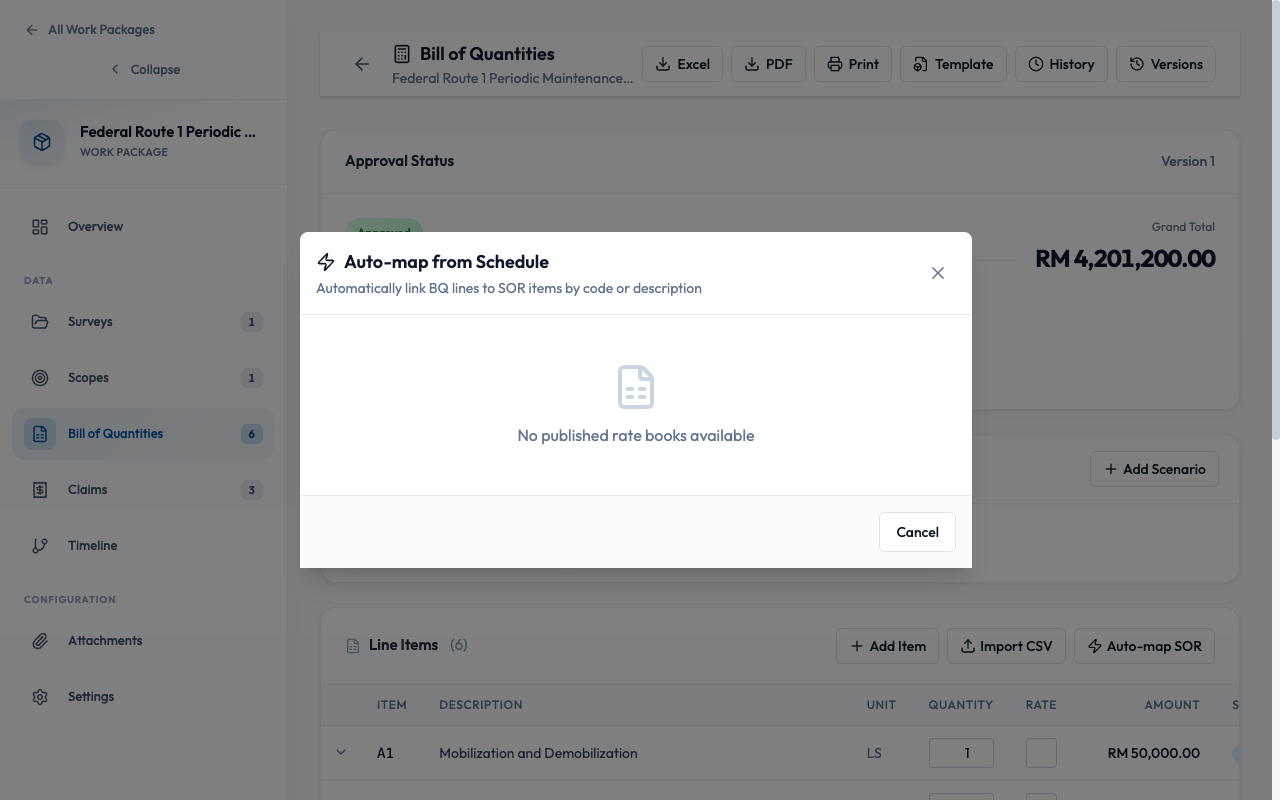
For large BQs, use bulk mapping to link multiple items at once:
- Click "Bulk Map" in the BQ toolbar
- The system auto-matches by description and unit
- Review matches — green = exact, yellow = partial, red = no match
- Manually adjust any incorrect matches
- Click "Apply Mapping" to link all at once
What happens when SOR rates change?
When your organization updates the Schedule of Rates, linked BQ lines can be:
Snapshot Mode (Default)
BQ keeps the rate from when it was linked. Changes to SOR don't affect existing BQs. Use this for locked/submitted contracts.
Track Latest Mode
BQ updates when SOR rates change. A "Resync" option appears when updates are available. Use this for draft BQs that should follow rate updates.
When SOR rates are updated and you have track-latest links, you'll see a notification banner: "X items have updated rates available — Review & Resync". You choose whether to accept the new rates or keep the current snapshot.
What are Rate Scenarios?
Rate scenarios let you price the same quantities with different unit rates. Useful for comparing contractor bids or pricing alternatives.
- Click "Add Rate Scenario" in the BQ tab
- Enter scenario name and type
- Set unit rates for each line item
- Compare totals across scenarios in the summary
How do I export the BQ?
- In the BQ tab, click the "Export" button
- Choose format: Excel (.xlsx) or PDF
- Select which rate scenario to include
- Download the generated file
Export includes:
- Work package header details
- All line items with quantities
- SOR item codes and references
- Unit rates and amounts
- Subtotals and grand total
Best Practices
- Link all surveys before generating BQ
- Use Bulk Map for large BQs (faster, fewer errors)
- Review auto-matches before applying
- Switch to Snapshot mode before locking BQ
- Regenerate BQ after claims have started
- Manually edit rates without SOR link (no audit trail)
- Leave track-latest mode on locked contracts
- Skip unit mismatch warnings