Work Packages
Your contract container for road maintenance projects
What is a Work Package?
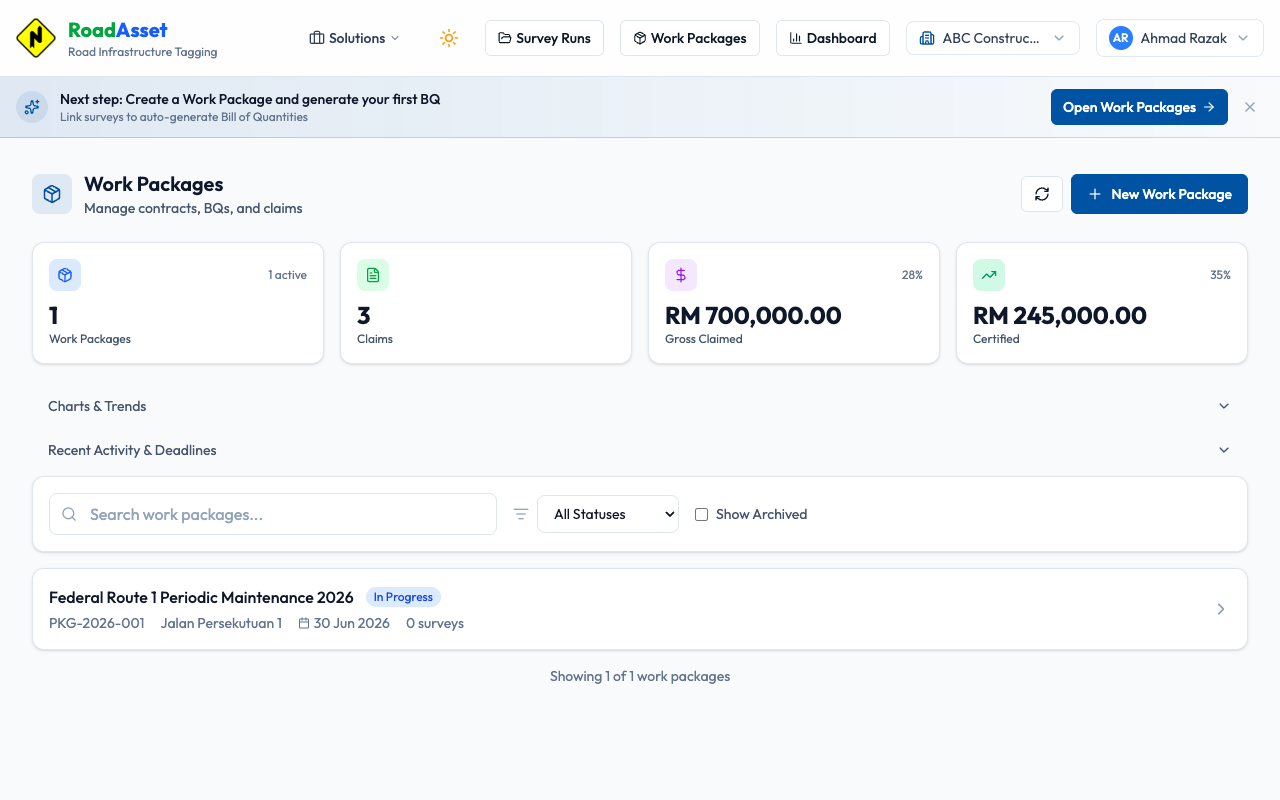
A Work Package is your contract container. It groups survey runs, defines project scope, generates Bills of Quantities, and tracks progress claims through the entire project lifecycle. Think of it as the central hub where all contract data lives.
How do I create a Work Package?
- Navigate to Work Packages from the main navigation
- Click the "New Work Package" button
- Enter a package name (required) — this is your contract identifier
- Optionally add a package number (e.g., PKG-2026-001)
- Click "Create"
How do I link surveys to my Work Package?
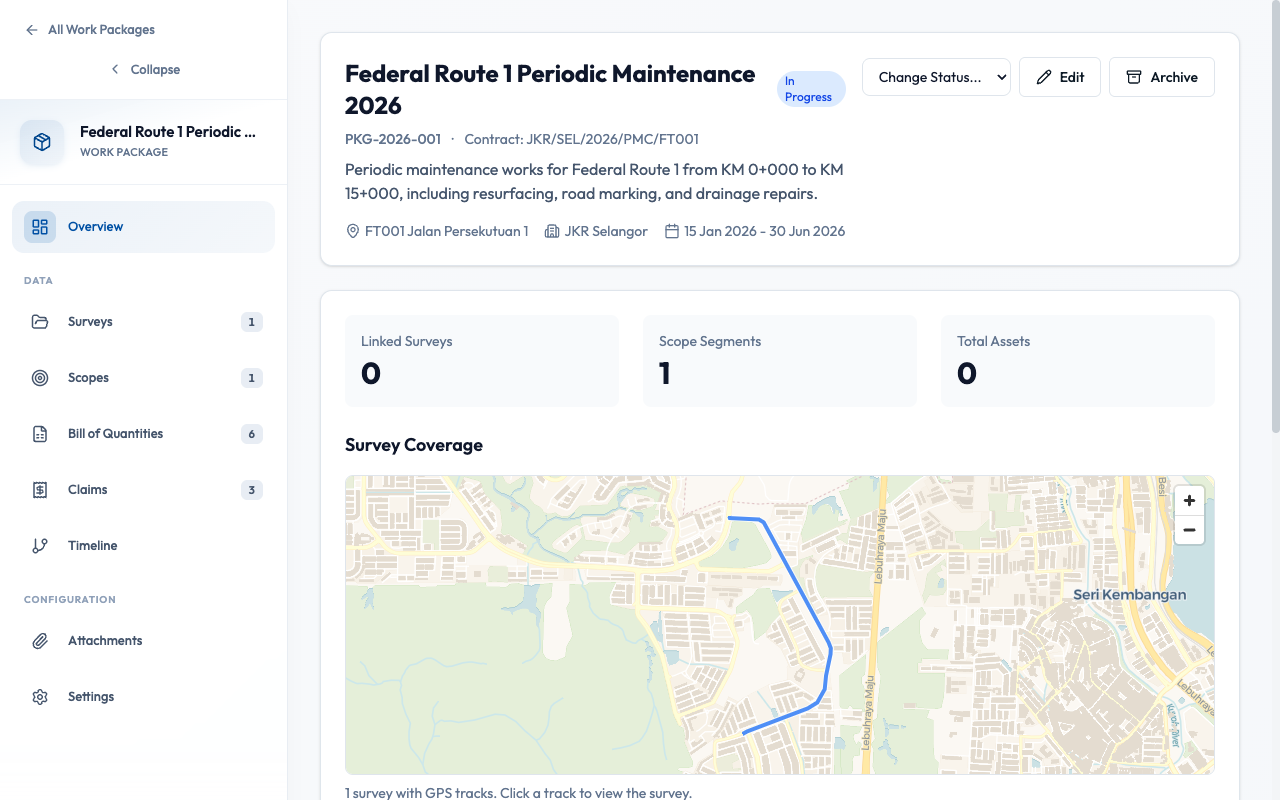
Survey Runs contain the field data (videos, GPS tracks, tagged assets, road segments) that feed into your work package. Link existing surveys or create new ones.
- Open your work package and go to the Surveys tab
- Click "Link Survey" to see available surveys
- Select the surveys that belong to this contract
- Set precedence if surveys overlap (higher precedence wins)
When multiple surveys cover the same road section, the system uses precedence to determine which measurements to use. Survey with higher precedence (lower number) takes priority. This prevents double-counting in BQ generation.
How do I define the work scope?
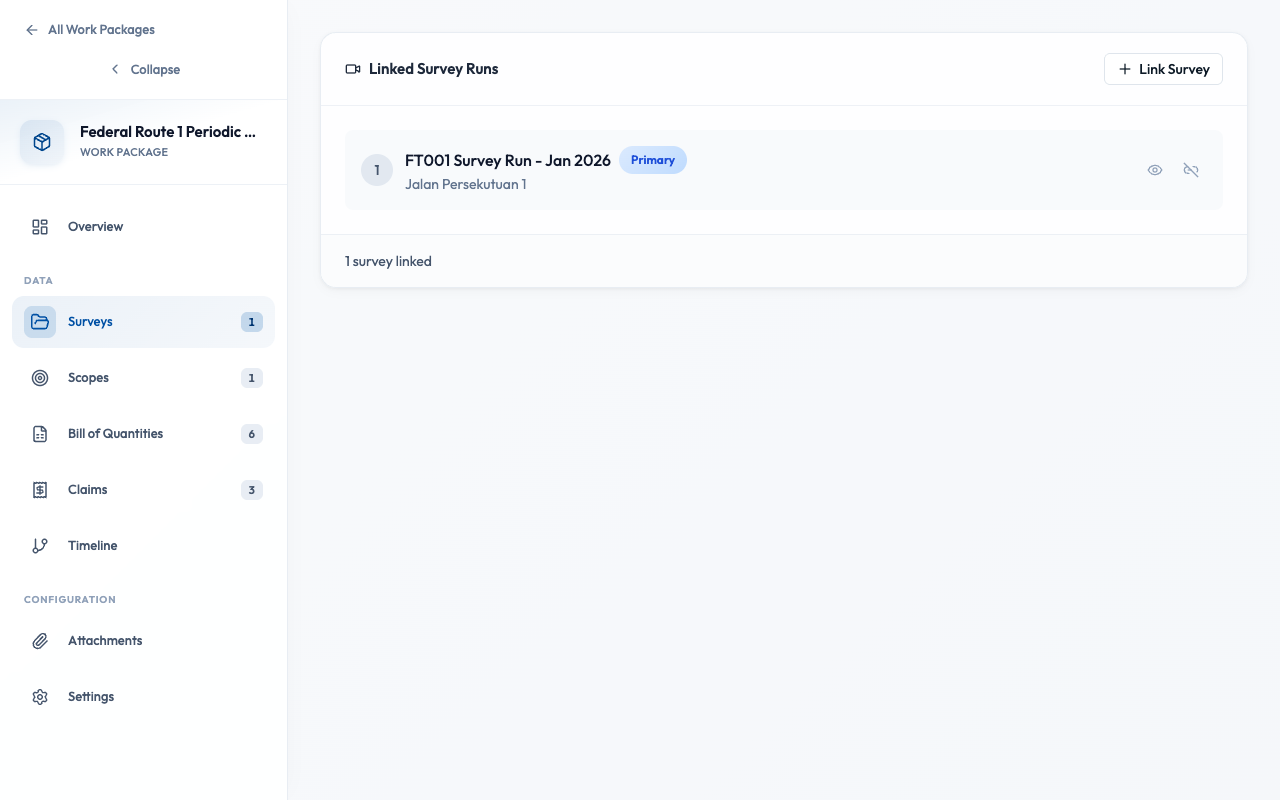
Scopes define which parts of the road are included in your contract. This filters which survey data is relevant.
- Go to the Scopes tab
- Click "Add Scope"
- Enter road number, chainage start and end (e.g., KM 0+000 to KM 15+000)
- Optionally specify direction (increasing/decreasing/both)
Contiguous Scope
FT001: KM 0+000 to KM 50+000
Single continuous stretch
Non-Contiguous Scopes
FT001: KM 10+000 to KM 25+000
FT001: KM 40+000 to KM 55+000
Multiple segments on same road
What's in each tab?
Overview
Contract summary with key metrics, dates, and quick actions. See project status at a glance.
Surveys
Link and manage survey runs. Set precedence for overlapping coverage.
Scopes
Define road segments and chainage ranges that are part of this contract.
BQ
Generate and manage Bill of Quantities. Link to Schedule of Rates. Learn more →
Claims
Create and track progress claims with SOV format. Learn more →
Timeline
Gantt chart view of project milestones, claim periods, and progress.
Settings
Edit contract details, financial settings, retention rates, and key dates.
What are the status stages?
Work packages progress through a defined workflow. Each status transition is logged for audit purposes.
Pre-Award
- Draft — Initial setup
- Surveying — Field data collection
- BQ Draft — Quantities being prepared
- Submitted — Sent to client
Post-Award
- Awarded — Contract awarded
- In Progress — Work underway
- Complete — Final account settled
Best Practices
- Link all surveys before generating BQ
- Define scopes to filter relevant data
- Set survey precedence for overlapping coverage
- Add contract details in Settings for complete records
- Generate BQ before all surveys are linked
- Delete surveys that have been used in claims
- Change scope after BQ is locked
- Link one survey to multiple work packages