Scope Management
Which parts of the road are in my contract?
What are Scopes?
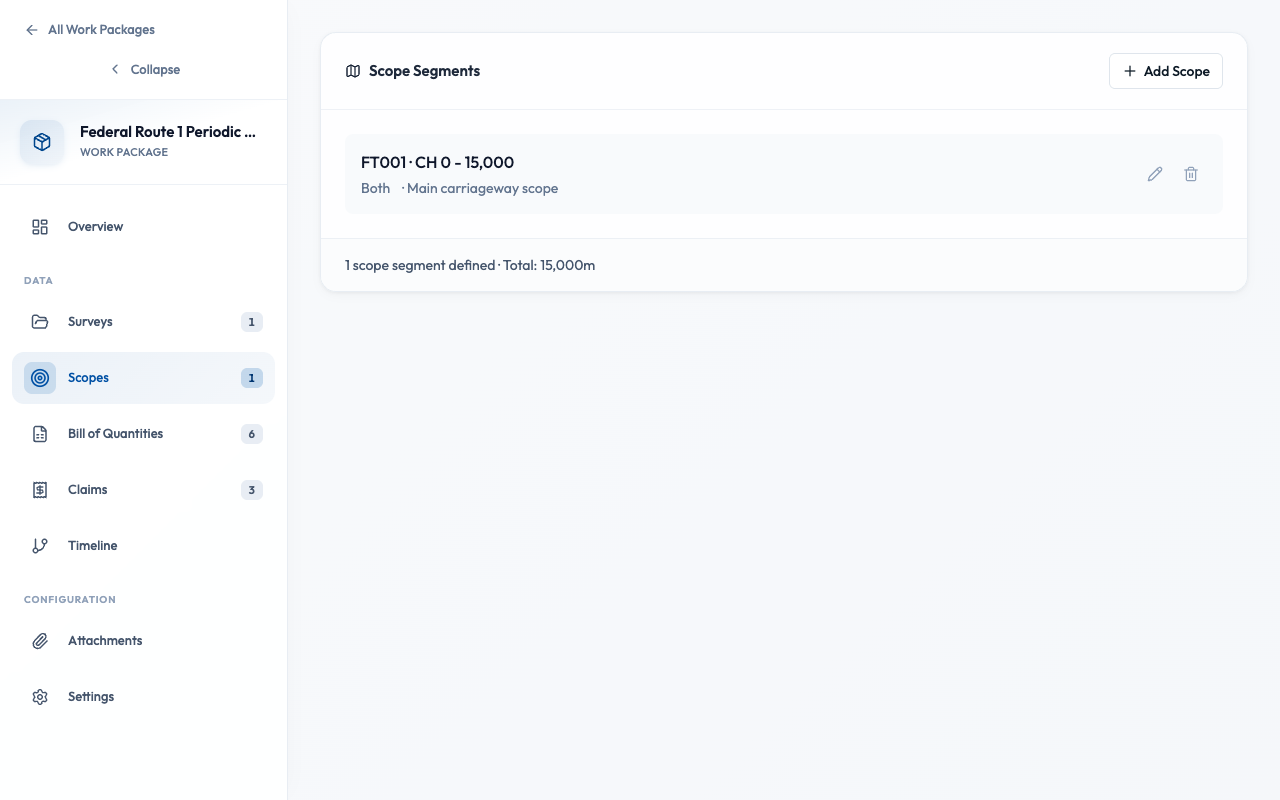
Scopes define the geographic boundaries of your contract. They specify which road sections (by chainage) are included in the work package. When you generate a BQ or link surveys, only data within scope is considered — keeping your quantities accurate and relevant.
Why define scopes?
- Filter survey data
Only segments and assets within scope appear in BQ generation
- Match contract boundaries
Scope should match the chainage ranges in your contract document
- Prevent quantity leakage
Ensure you don't claim for work outside your contract boundaries
How do I add a scope?
- Open your Work Package and go to the Scopes tab
- Click "Add Scope"
- Enter the Road Number (e.g., FT001, JKR 1)
- Enter Chainage Start (e.g., 0 for KM 0+000)
- Enter Chainage End (e.g., 15000 for KM 15+000)
- Select Direction: Increasing, Decreasing, or Both
- Click "Save"
Enter chainage in meters. KM 15+500 = 15500 meters. The system displays chainages in both meters and KM format for convenience.
How do I handle non-contiguous sections?
Some contracts cover multiple separate sections on the same road. Add multiple scopes to handle this.
Contiguous (Single Scope)
FT001: KM 0+000 to KM 50+000
One continuous stretch
Non-Contiguous (Multiple Scopes)
FT001: KM 10+000 to KM 25+000
FT001: KM 40+000 to KM 55+000
Two separate sections, same road
How does scope affect which surveys are included?
Scopes act as a spatial filter on linked surveys:
Survey contains segments from KM 0 to KM 60
Work package scope is KM 10 to KM 25
Result: Only segments within KM 10-25 are used for BQ
This means the same survey can be linked to multiple work packages with different scopes — each gets only the relevant data.
Common mistakes when defining scopes
Wrong chainage units
Entering 15 instead of 15000 for KM 15+000
Scope wider than contract
Including sections not in your contract boundaries
Forgetting direction
Contract covers one direction only but scope set to "Both"
Overlapping scopes
Same chainage range defined twice, causing double-counting
Best Practices
- Define scopes before linking surveys
- Match scope exactly to contract boundaries
- Use multiple scopes for non-contiguous sections
- Review scope against map visualization
- Generate BQ before defining scopes
- Change scopes after BQ is locked or claims submitted
- Create overlapping scope definitions
- Include areas outside your contract authority