Claim Export
How do I submit claims to the client?
Export Your Claims
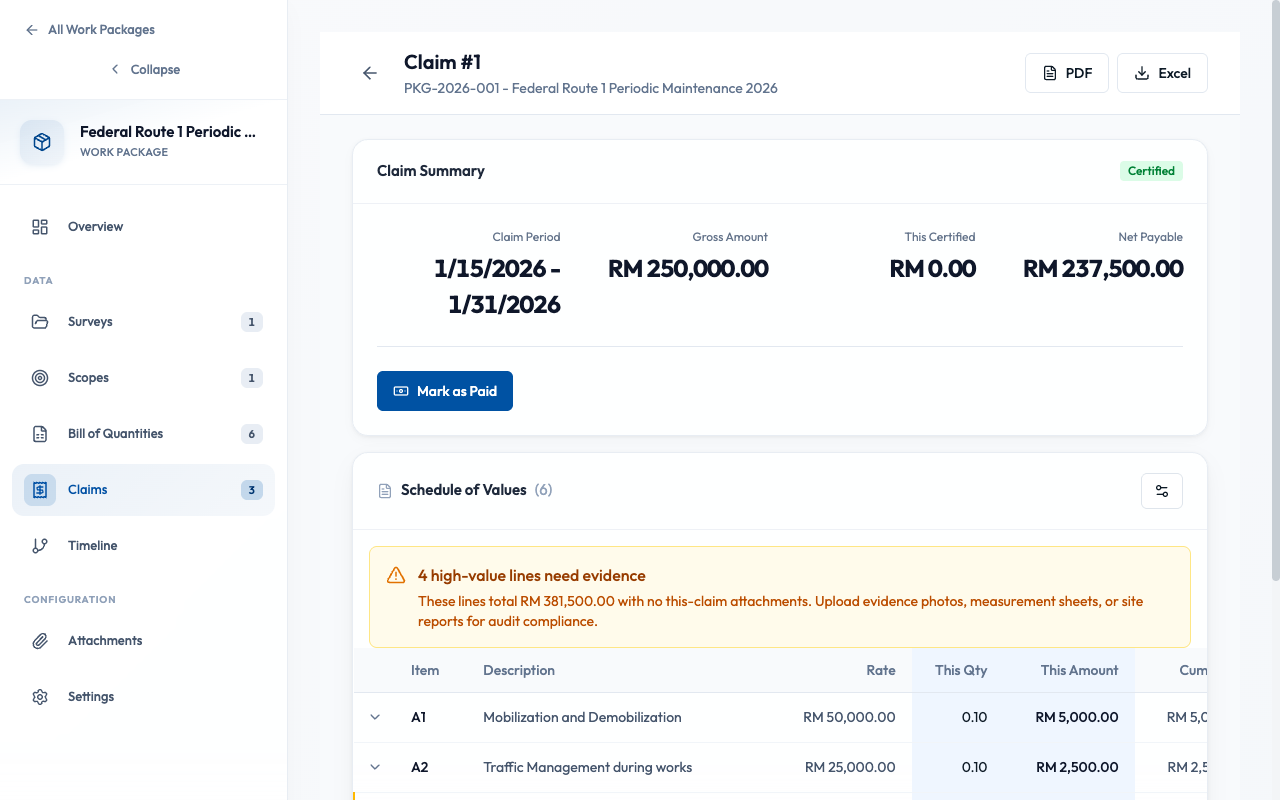
RoadAsset exports claims in the standard Schedule of Values (SOV) Excel format. This includes all BQ lines, cumulative quantities, this-claim quantities, rates, and totals. The exported file is ready for client submission.
1
What formats can I export?
Excel (.xlsx)
Standard SOV format with formulas. Ready for client submission.
Recommended for most cases
PDF (Coming Soon)
Print-ready format for archival and signing.
Future feature
2
What's in the SOV Excel file?
The exported Excel contains these columns:
| Column | Description |
|---|---|
| Item No. | BQ line number |
| Code | SOR item code (e.g., P-01) |
| Description | Work item description |
| Unit | Unit of measurement (m², m³, No, etc.) |
| Contract Qty | Total BQ quantity |
| Prev Cum Qty | Cumulative quantity from previous claims |
| This Claim Qty | Quantity claimed this period |
| Cum to Date | Total cumulative (Prev + This) |
| Rate | Unit rate from SOR |
| This Claim Amount | This Qty × Rate |
| Cum Amount | Cumulative amount to date |
3
How do I prepare a claim for submission?
- Open your claim from Work Package → Claims tab
- Verify all "This Claim Qty" values are entered
- Link evidence to claim lines (segments, assets)
- Review totals: Gross Amount, Retention, Net Amount
- Click "Export Excel" to download SOV
- Review the Excel file before sending to client
- Change claim status to "Submitted"
Tip: Always export and review the Excel before marking as Submitted.
The status change is logged for audit purposes.
What happens after I submit?
Draft
Submitted
Certified
Paid
Submitted → Certified
Client reviews and approves quantities. Claim becomes locked after certification.
Certified → Paid
Payment received. Update status and record payment date for tracking.
How do I add items not in the original BQ?
For additional work items (variations, provisional sums), you can add manual lines directly to the claim:
- Open your claim
- Click "Add Manual Line"
- Enter description, unit, quantity, and rate
- Add reference (e.g., "VO-001" or "Daywork")
- Save the line
Note: Manual lines appear in the export but are not linked to the original BQ.
They should reference approved variations or daywork orders.
Best Practices
DO
- Review totals before exporting
- Link evidence before submission
- Update status after client response
- Keep a copy of exported files
DON'T
- Edit exported Excel then re-import
- Submit without evidence linking
- Change quantities after certification
- Add manual lines without proper reference
What Auditors Will Ask
"When was this claim submitted?"
Claim → Status History shows submission timestamp and user.
"What is the basis for this manual line?"
Manual lines should include Reference field linking to VO approval or daywork order.
"Does the export match system records?"
System exports are generated directly from database. The Excel reflects exact system state at export time.