Audit Logs
Track all changes with comprehensive audit trails. Review who changed what and when for compliance and accountability.
What Auditors Will Ask
- "Who approved this claim?" — Audit trail shows approver and timestamp
- "When was the quantity changed?" — Every modification is logged with before/after values
- "Was proper authorization obtained?" — Role-based actions show permission level
- "Can you prove this data wasn't tampered with?" — Immutable logs with server timestamps
What Gets Logged?
The audit system captures all significant actions across your work packages:
BQ Changes
- • Line item additions/deletions
- • Quantity modifications
- • Rate scenario changes
- • Evidence linking/unlinking
Claim Actions
- • Claim creation/submission
- • Status transitions
- • Amount certifications
- • Payment records
Work Package
- • Scope modifications
- • Survey linkage changes
- • Status updates
- • Configuration changes
Rate Management
- • Rate book imports
- • Version publishing
- • Rate item modifications
- • Mapping changes
How do I read the audit trail?
Access the audit log from the Work Package detail page under the "Audit" tab:
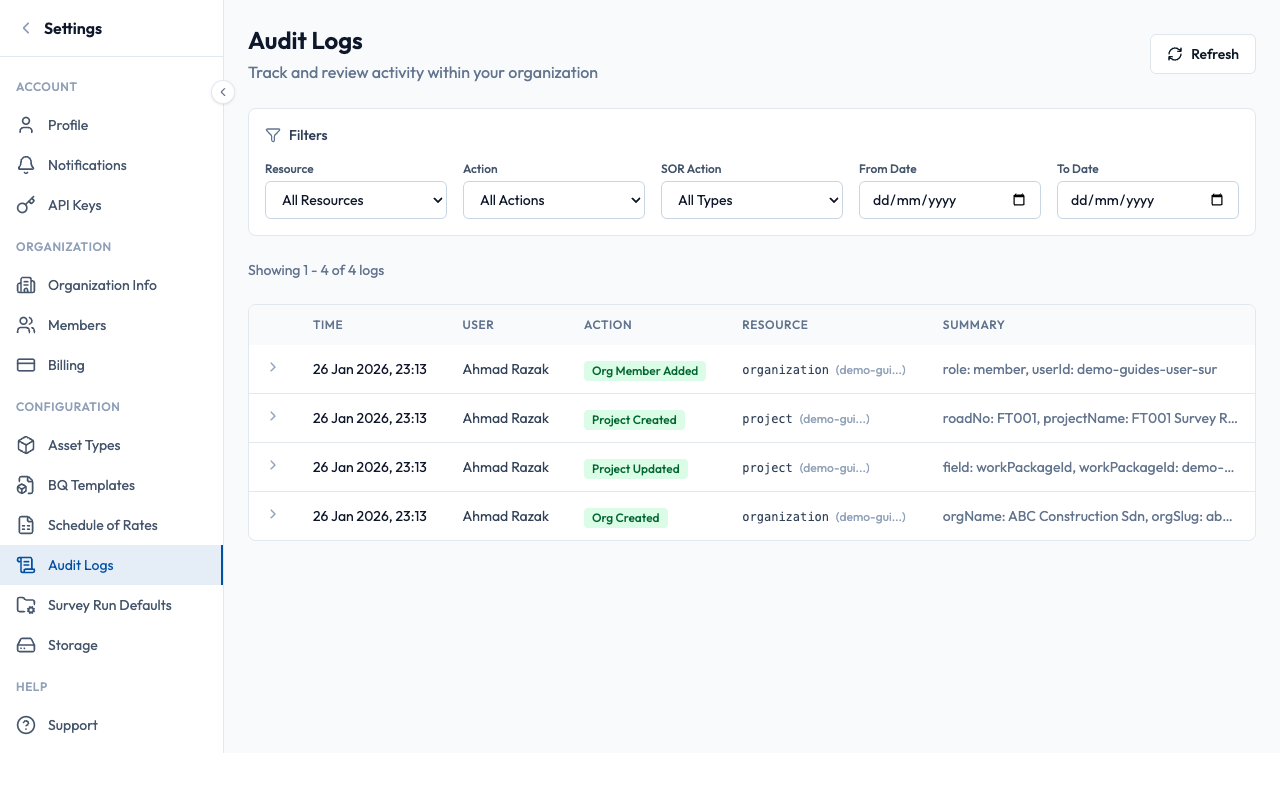
Each audit entry shows:
- Timestamp
Server-recorded time in your local timezone
- User
Who performed the action (email and display name)
- Action Type
What was done: Create, Update, Delete, Submit, Certify, etc.
- Details
Before/after values for changes, affected items
How do I find specific changes?
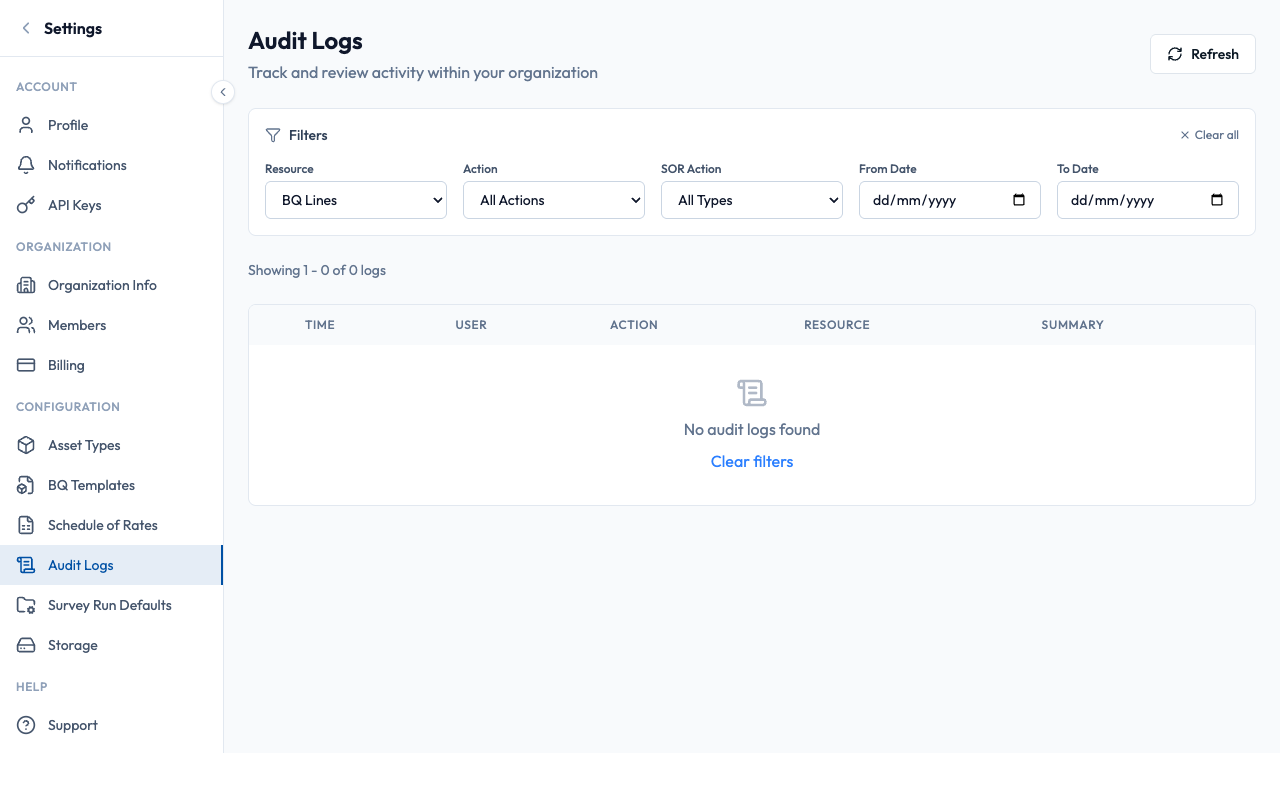
Use the filter controls to narrow down the audit log:
Filter by Entity
View only BQ changes, claim changes, or work package changes
Filter by User
See all actions by a specific team member
Date Range
Focus on a specific time period (e.g., last month)
Action Type
Show only creates, updates, deletes, or status changes
Common Audit Scenarios
"When was this BQ line item added?"
- Go to Work Package → Audit tab
- Filter by Entity: "BQ Line"
- Filter by Action: "Create"
- Search for the specific item code or description
- The entry shows who added it and when
"Who certified claim #3?"
- Go to Work Package → Audit tab
- Filter by Entity: "Claim"
- Filter by Action: "Certify"
- Look for claim #3 in the results
- The user column shows the certifier
"What changed last week?"
- Go to Work Package → Audit tab
- Set date range to last 7 days
- Review all changes in chronological order
- Export to Excel if needed for documentation
Best Practices
- ✓ Review audit logs before submitting claims
- ✓ Export logs for external auditor review
- ✓ Check who made changes when questions arise
- ✓ Use filters to find specific changes quickly
- ✓ Keep audit log access restricted to authorized users
- ✗ Ignore audit trails during disputes
- ✗ Assume logs can be modified after the fact
- ✗ Share audit exports with unauthorized parties
- ✗ Delete work packages to hide audit history
- ✗ Rely solely on memory for compliance questions
Data Retention
Audit logs are retained for the lifetime of the work package. When a work package is archived, its audit trail is preserved and remains accessible in read-only mode.
For compliance purposes, we recommend exporting audit logs to your organization's document management system at project milestones (e.g., after each claim certification).