Progress Claims
Track work progress and manage payment claims
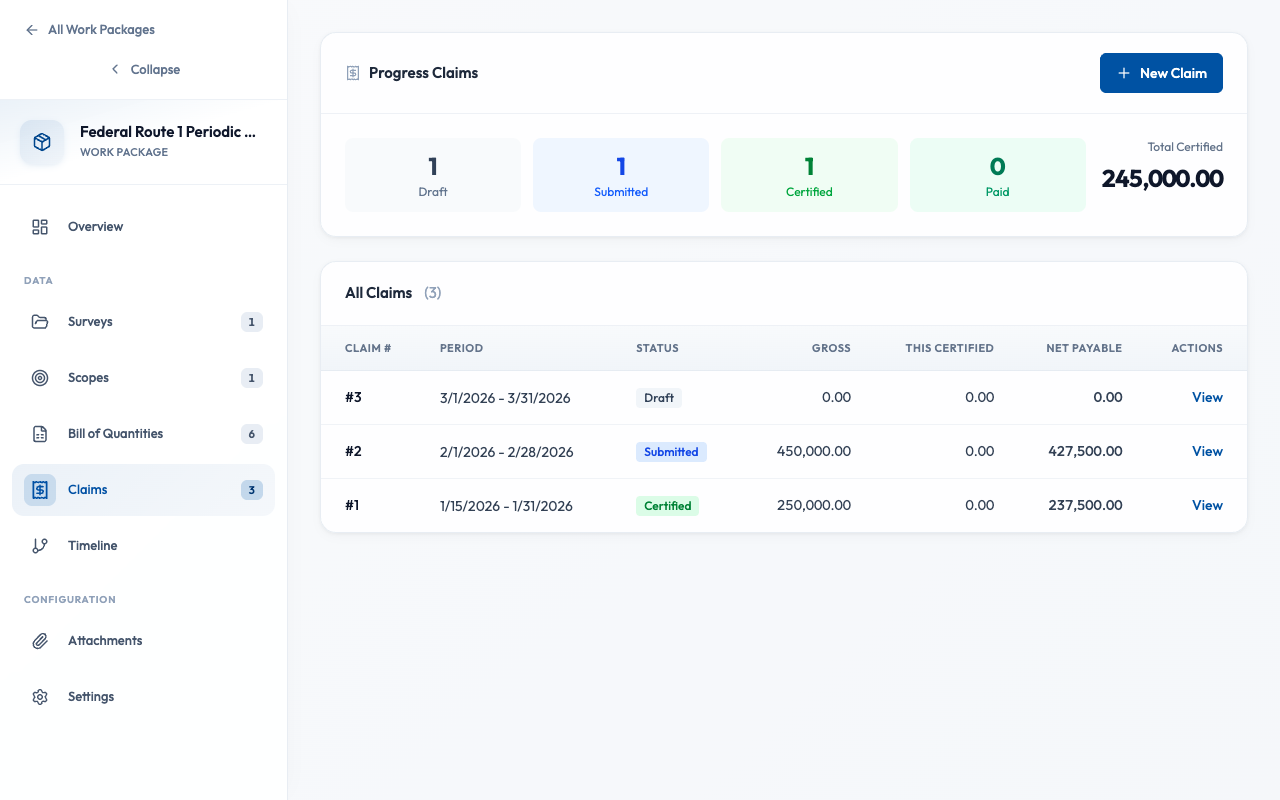
What is a Progress Claim?
Progress Claims track work completed during a claim period and calculate payment amounts. Each claim follows the Schedule of Values (SOV) format, referencing BQ line items with quantities completed, evidence attachments, and cumulative progress tracking.
How are claim quantities tracked?
Each claim line mirrors a BQ item, tracking quantities at different stages:
| Column | Description |
|---|---|
| Contract Qty | Original BQ quantity (total scope) |
| Previous Qty | Total claimed in prior claims |
| This Claim Qty | Work done this period (you enter this) |
| Cumulative Qty | Previous + This Claim (auto-calculated) |
| Balance Qty | Contract - Cumulative (remaining work) |
Amount Calculation
This Claim Amount = This Claim Qty × Unit Rate
How do I create a claim?
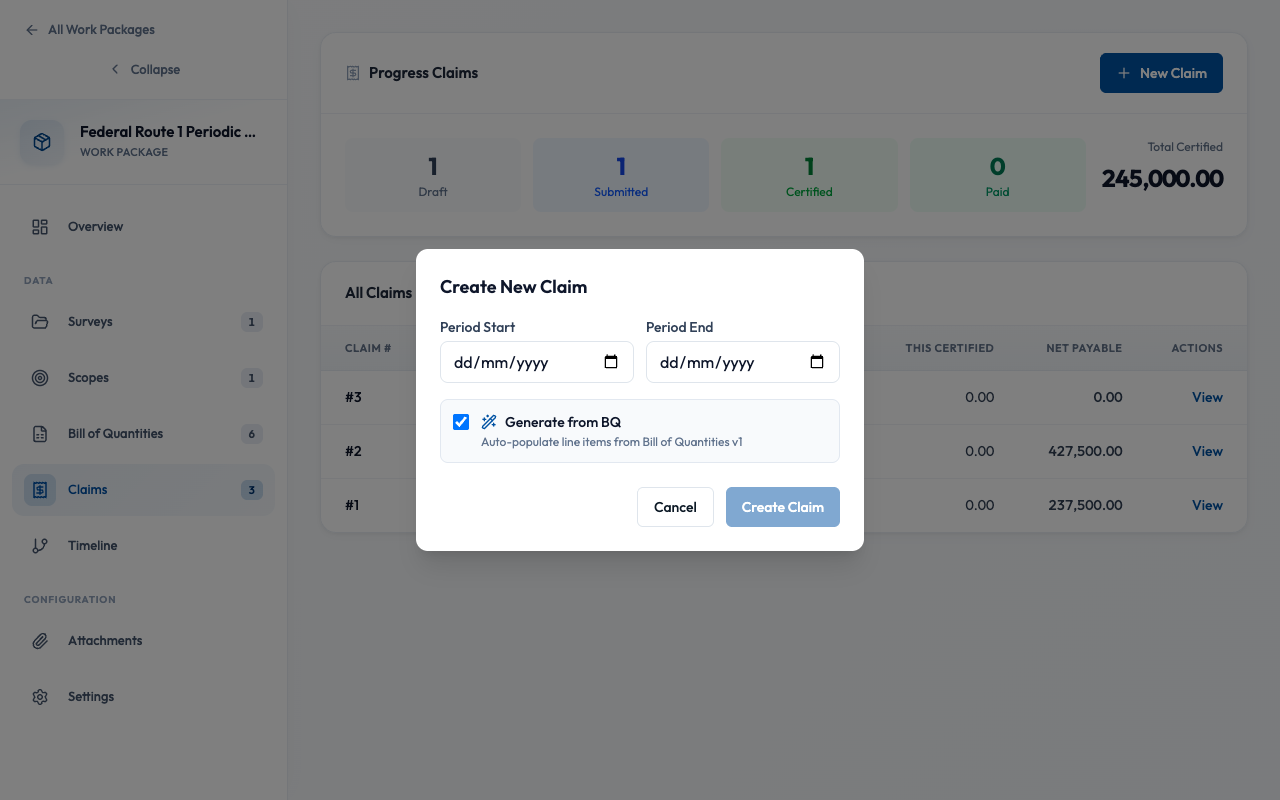
- Open your work package and go to the Claims tab
- Click "New Claim"
- Set the claim period (start and end dates)
- Choose to "Generate from BQ" to pre-fill all lines
- Click "Create"
How do I enter claim quantities?
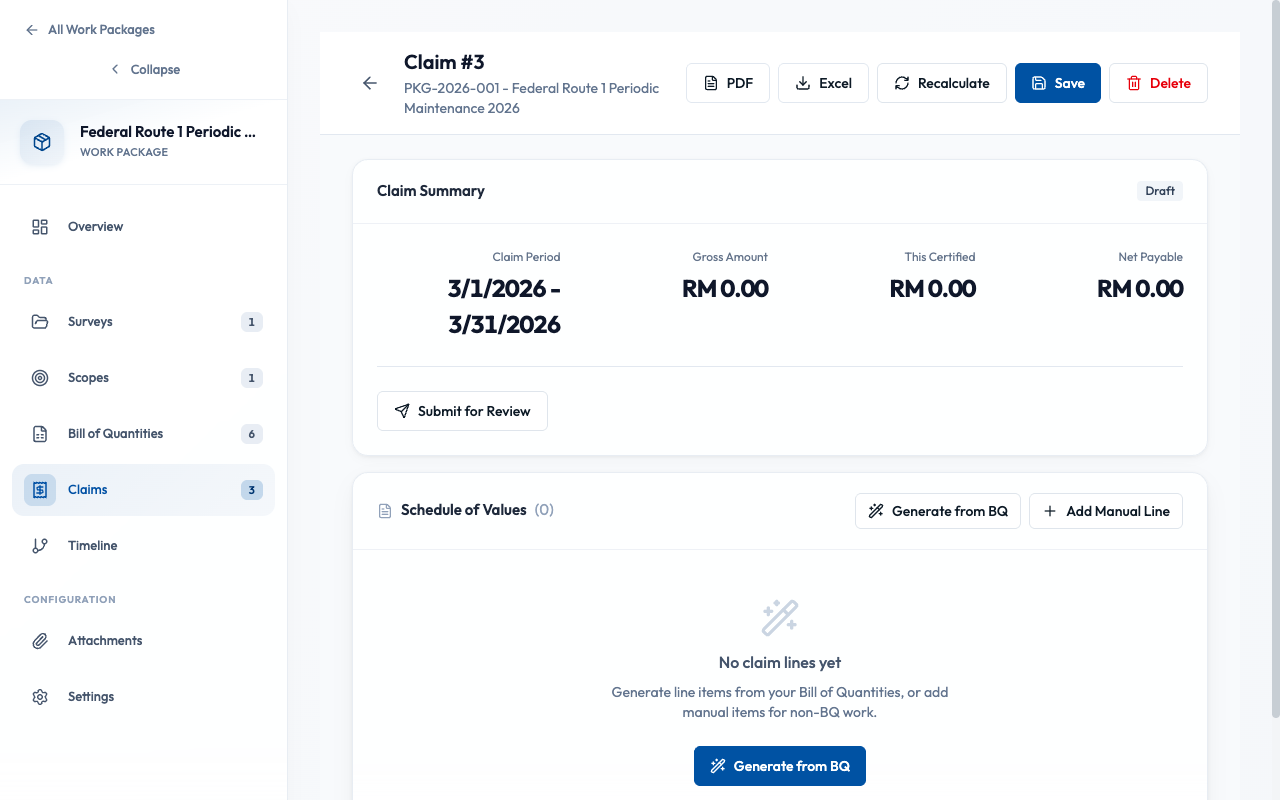
- Click on a claim line to edit
- Enter the "This Claim Qty" value
- Cumulative and balance update automatically
- Amount is calculated from quantity × rate
- Cumulative cannot exceed contract quantity
- Negative quantities not allowed
- Auto-saves as you type
How do I attach evidence to claim lines?
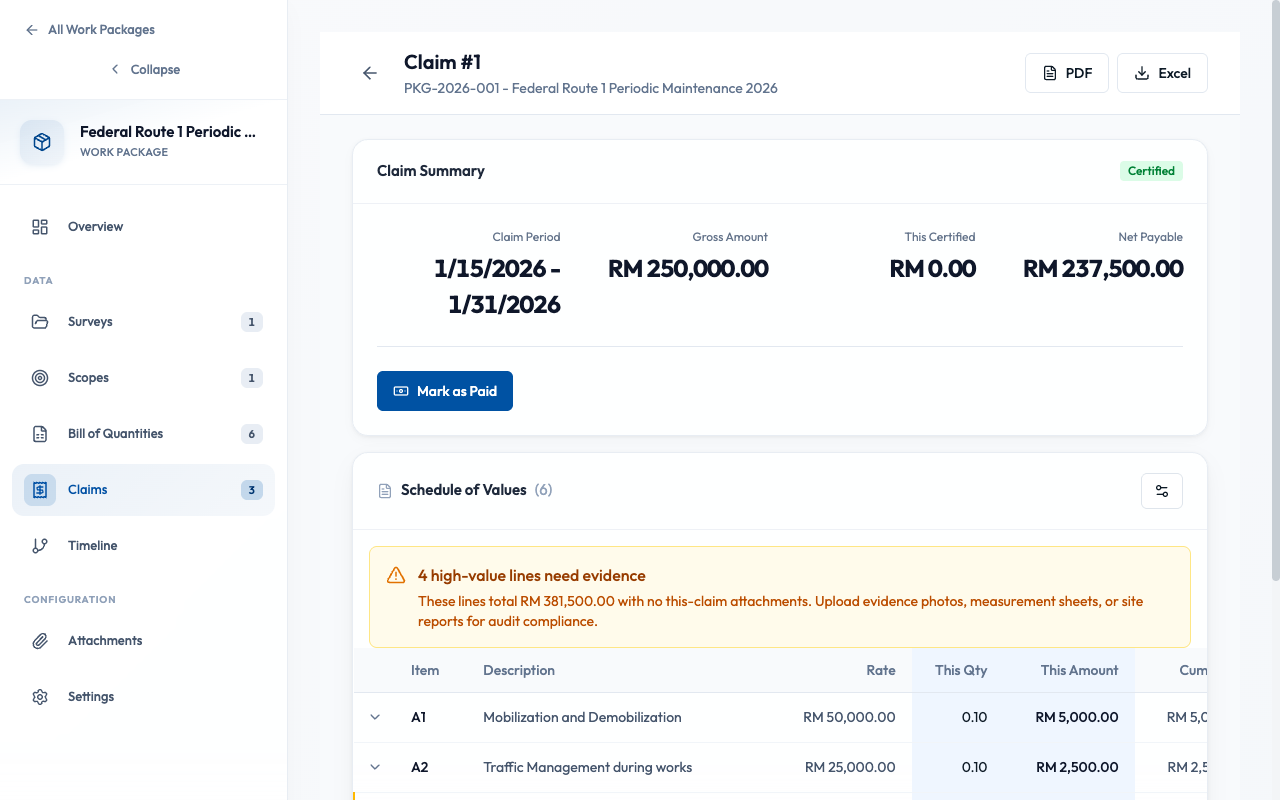
Link survey evidence (road segments, tagged assets, photos) to claim lines to justify quantities claimed. This creates a traceable audit trail from field data to payment.
Evidence linking creates an auditable trail from "work claimed" to "work observed in field". Auditors can trace any claim amount back to the original survey data, GPS coordinates, and photos.
Link Road Segments
Road segments contain measurements (length, area) and GPS coordinates. Link segments to show where work was performed.
- Click "Link Evidence" on a claim line
- Select the "Segments" tab
- Search or filter by road number, chainage
- Select relevant segments and click "Link"
Link Tagged Assets
Tagged assets include signboards, guardrails, km markers with photos and coordinates. Link assets to document specific items claimed.
- Click "Link Evidence" on a claim line
- Select the "Assets" tab
- Search by asset type or chainage
- Select relevant assets and click "Link"
Linked evidence appears in the claim line's detail panel. Each link shows: type (segment/asset), location (chainage, GPS), and a thumbnail if available.
How does retention work?
Retention is a percentage held back from each payment as security:
During Construction
Typically 5-10% of each claim is retained until practical completion. Set in Work Package Settings.
After Completion
Half released at practical completion, rest after defects liability period.
Net Payable = Gross Amount − Retention − Previous PaymentsWhat are the claim statuses?
Best Practices
- Link evidence before submitting claims
- Review previous claim quantities before entering new ones
- Set correct claim period dates
- Export PDF for client submission
- Submit claims without linked evidence
- Claim more than contract quantity
- Delete claims after submission
- Change BQ rates after claims exist